Resolve and Resolume Video Resolutions
Mental Model
In Resolume, the 'input' composition and screen 'output' resolution are controlled independently. In the Davinci Resolve timeline, we can't specify a different input and output resolution - we're locked to just the timeline resolution. In Fusion, the input resolution and output resolution can be different.
So we need to keep the following resolutions in mind:
- Davinci input resolution (Displayed as 'Input Resolution')
- Davinci output resolution (Displayed as 'Output Resolution')
- Resolume composition resolution (Displayed as 'Resolume Input Resolution')
- Resolume screen resolution (Displayed as 'Resolume Output Resolution')
To help make sense of things, VideoRemap will display these resolutions at all times in the details section of the plugin.
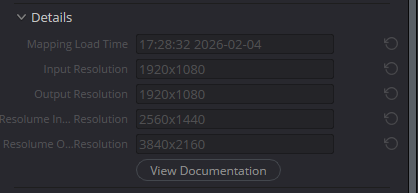
If we're using VideoRemap as a edit timeline effect, then the Davinci output resolution will always match the timeline resolution.
If we're using VideoRemap as a Fusion node, then the Davinci output resolution will be the resolution of the video that is being piped into the VideoRemap node in Fusion. OR, if use RoD as output size is enabled, this resolution will be set by the output resolution X/Y. Read more about Fusion VideoRemap here
How VideoRemap handles resolution
VideoRemap takes the input video and places it in the Resolume 'composition' at the top left corner, then does the advanced mapping into the Resolume output screen and crops that into the output resolution size.
So there can be up to 4 different resolutions in the mapping flow and you might run into situations where the mapping or timeline resolution doesn't quite match what you want! The resulting mapping might be cut off or appear small. This is because VideoRemap will try to not mess with the resolutions that we give it and instead just fit the data in with the least amount of distortion.
As an example, say we have:
- Input resolution 1920x1080
- Resolume composition resolution: 2560x1440
- Resolume output screen resolution: 3840x2160
- Input resolution 1920x1080
VideoRemap will take the 1920x1080 input video, place it in the composition 2560x1440 on the top-left without stretching. It'll then slice that composition up into slices and transform them into the Resolume output screen. VideoRemap will then cut out the 1920x1080 window out of that resulting 3840x2160 output starting with the top-left and display that in Davinci Resolve.
Here's a visual explanation of the mapping process, showcasing 3 different resolutions.
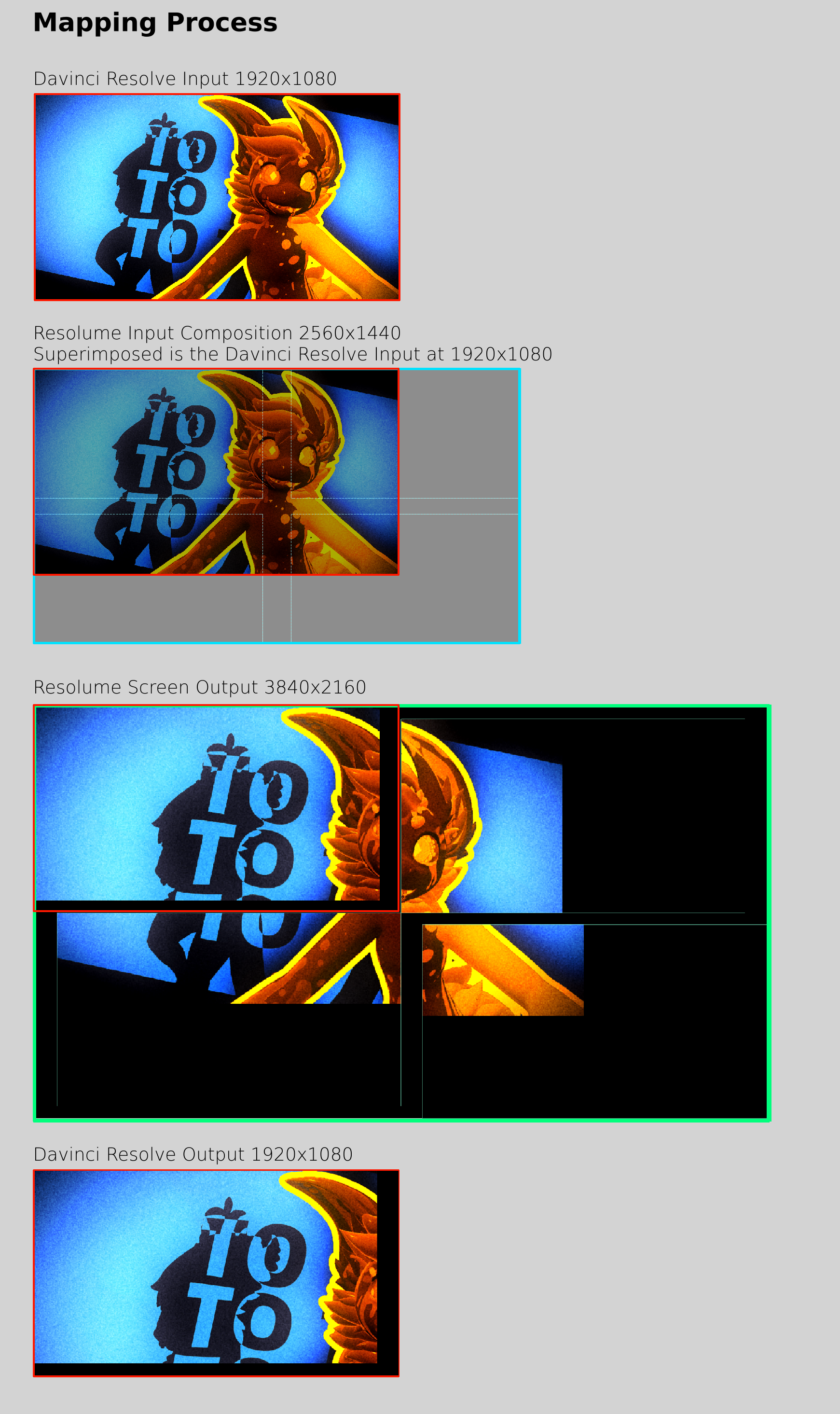
If we need to make sure our output fits properly and we're okay with resizing our input data and messing with it, we'll need to use the Fit to Mapping feature.
Fit to Mapping
The Fit to Mapping option will stretch/squish the mapping such that the input video is mapped to the output without any cropping.
If the aspect ratios between the composition, screen and output resolutions match, the mapping will be resized to fit the output without any cropping.
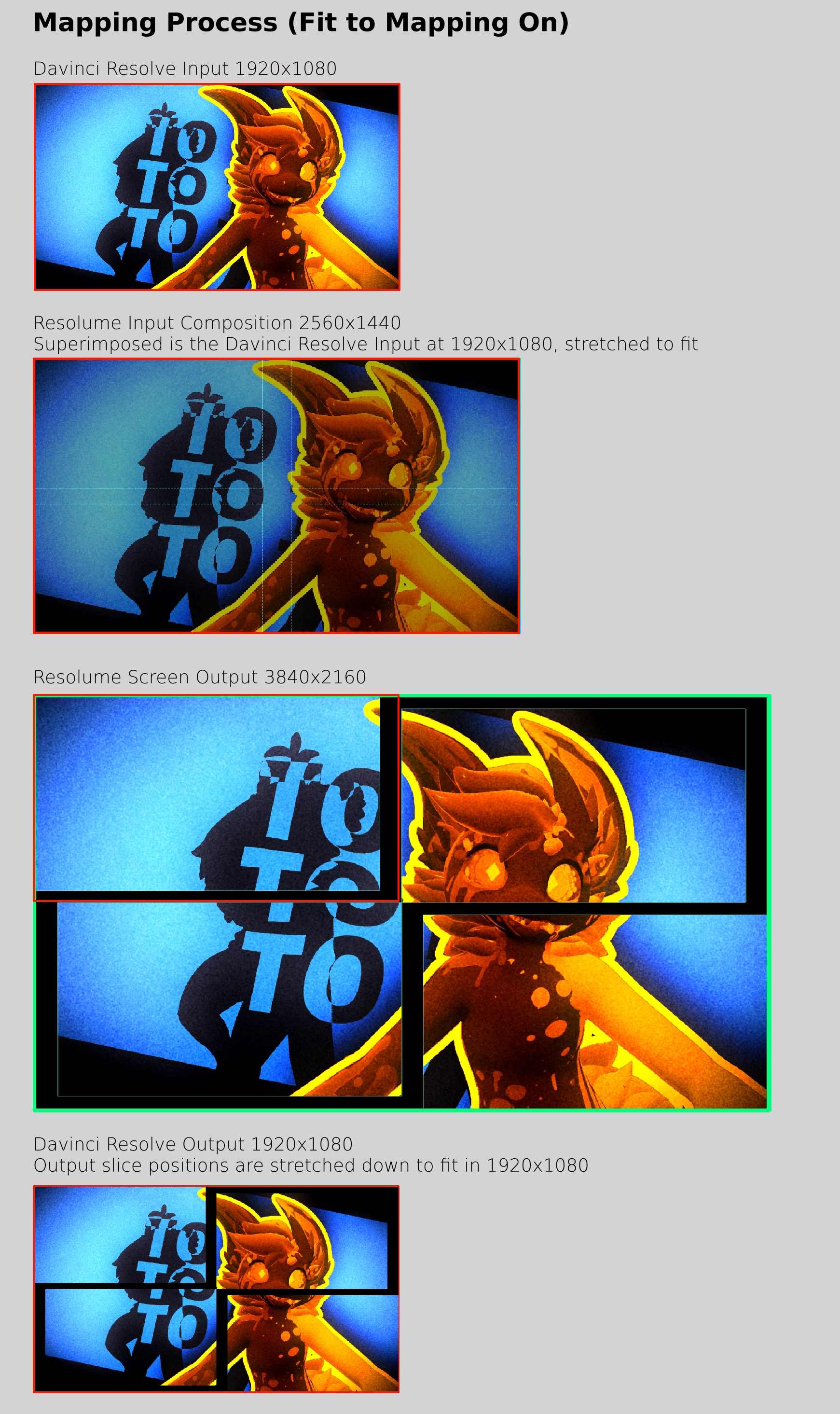
With the previous example in mind, turning this feature will: Make the video stretch out into the 2560x1440 space (this doesn't necessarily mean the pixels are stretched, but the that the mapping is instead). Cut the slices up and transform them into the 3840x2160 output screen. Then take that output screen and squish it into 1920x1080 without any cropping (again, not necessarily squishing the pixels, but squishing the mapping itself so that it fits into 1920x1080 without upscaling/downscaling.)